
As an Amazon Associate, Buyiox earns from qualifying purchases made through links on this page, at no extra cost to you. This helps us keep testing home office gear and publishing honest guides.
6 Best Ergonomic Mice That Actually Save Your Wrist
Your wrist starts aching before lunch. Your fingers feel tingly by late afternoon. You shake your hand out, stretch it for a few seconds, and then go straight back to the same flat mouse that caused the problem. If that sounds familiar, the mouse is not a small detail in your setup. It is the tool your hand holds for hours every single day.
Here is the truth most mouse roundups skip: there is no single best ergonomic mouse for everyone. A tall vertical mouse can be a revelation for one person and a clumsy brick for another. A trackball can end shoulder pain for someone with a tiny desk, while a classic contoured mouse is still the best choice for someone who just wants a gentler version of what they already know. The shape has to match your hand, your desk, and the kind of pain you actually feel.
So instead of ranking six mice by popularity, we matched six proven, widely sold mice to the six jobs home office workers actually need: all-day productivity, a true vertical grip for smaller hands, a trackball for tight desks, a budget vertical starter, a classic contoured shape, and a multi-device workhorse. Every product below is real and widely sold, with verified shape, DPI and connectivity facts. Prices are approximate and change often, so check the live price on Amazon before you buy.
One important note before we start: a mouse alone does not fix wrist pain. The Mayo Clinic advises keeping your wrist in a relaxed middle position, not bent all the way up or down, and taking short, frequent breaks. The Occupational Safety and Health Administration guidance says the same thing in plainer terms: do hand tasks with the wrist in a straight, neutral posture. The mice below are chosen because their shapes make that neutral position easier to hold, not because any mouse can promise a cure. If you have persistent numbness, weakness or pain that wakes you at night, see a clinician rather than shopping your way out of it.

The 6 best ergonomic mice, matched to your hand and your pain point.
The 6 Best Ergonomic Mice at a Glance
- Logitech MX Master 3S – best overall for all-day productivity
- Logitech Lift Vertical Ergonomic Mouse – best vertical mouse for small to medium hands
- Logitech MX Ergo – best trackball mouse for tight desks
- Anker 2.4G Wireless Vertical Ergonomic Mouse – best budget vertical mouse
- Microsoft Sculpt Ergonomic Mouse – best classic contoured mouse
- Logitech M720 Triathlon – best multi-device mouse on a budget
Our Top Picks, Reviewed
1. Logitech MX Master 3S – Best Overall for All-Day Productivity
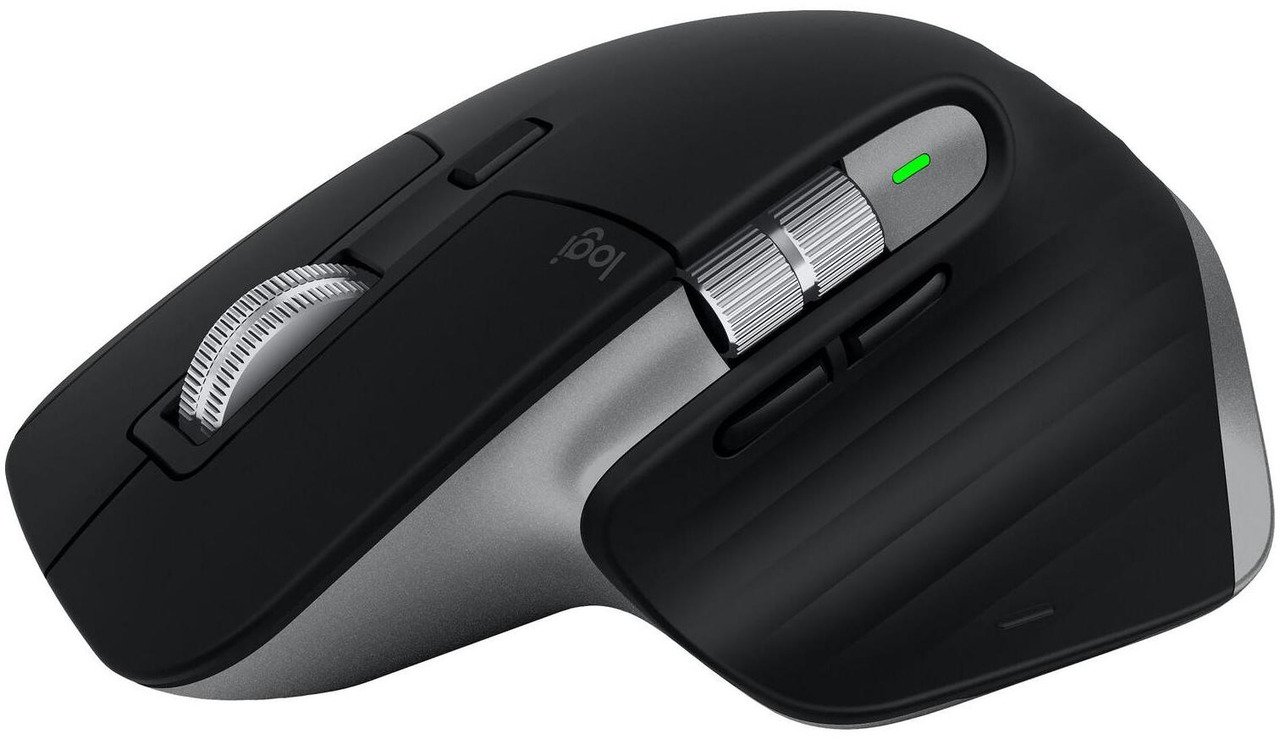
Logitech MX Master 3S wireless performance mouse
If you want the safest single upgrade from a cheap flat mouse, start here. The MX Master 3S keeps a familiar mouse shape but sculpts it properly: a sculpted right-handed body, a thumb rest, and a gentle tilt that puts your arm in a more natural posture. It feels like a normal mouse on day one, which matters, because a mouse you abandon after a week helps nobody.
The specs back up the comfort. The Darkfield sensor runs from 200 to 8000 DPI in 50 DPI steps and tracks on almost any surface, even glass. It connects by Bluetooth or the included Logi Bolt USB receiver, pairs with up to 3 devices, and the rechargeable battery lasts up to 70 days on a full charge. A one-minute charge gives around 3 hours of use, so a dead battery is a minor annoyance, not a lost workday.
The MagSpeed scroll wheel is the quiet star here. It spins freely through long documents and spreadsheets, then clicks into precise steps when you need control. The thumb wheel adds horizontal scrolling, which spreadsheet and video editing users will love. At around $99, this is the priciest traditional mouse on this list, and at 141 g it is heavier than a travel mouse, so it suits a fixed desk far better than a laptop bag.
Pros:
- Sculpted right-handed shape with thumb rest for a natural wrist posture
- 200 to 8000 DPI Darkfield sensor tracks on almost any surface, even glass
- Bluetooth plus Logi Bolt receiver, pairs with up to 3 devices
- Up to 70 days of battery per charge, USB-C fast charging
- MagSpeed wheel plus thumb wheel for long documents and spreadsheets
- Quiet clicks with 90 percent less click noise than the previous model
Cons:
- Around $99, the most expensive traditional mouse here
- Right-handed only, no left-handed version
- At 141 g it is heavy for travel or small laptop bags
- Full customization needs the Logi Options+ software
Best for: Office workers, editors, designers and anyone who mouses for 6 or more hours a day and wants comfort without relearning how to point.
Who should avoid it: Left-handed users, and anyone who wants the most dramatic wrist-angle change, should look at the Lift or the MX Ergo instead.
2. Logitech Lift Vertical Ergonomic Mouse – Best Vertical Mouse for Small to Medium Hands
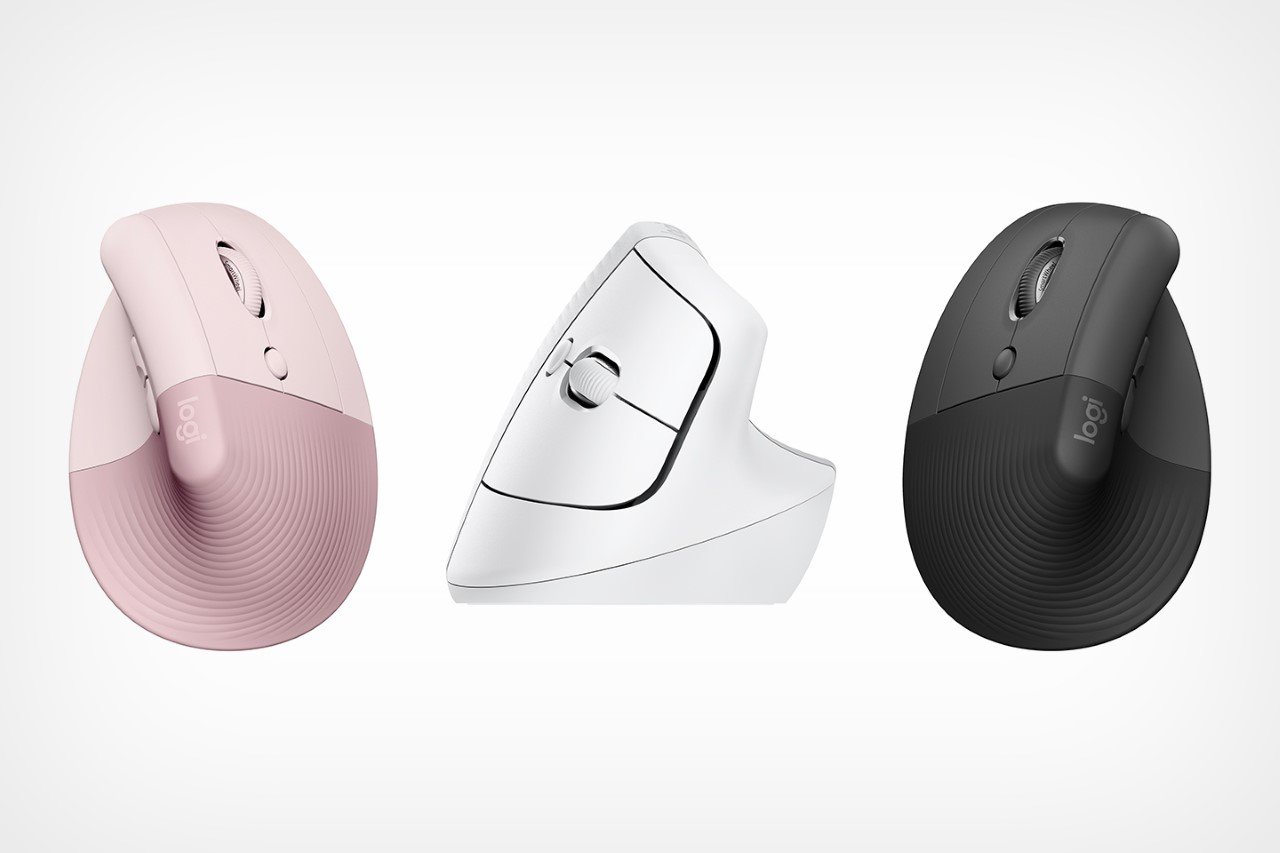
Logitech Lift Vertical Ergonomic Mouse
The Lift is the vertical mouse most people should try first, and the reason is simple: it was designed for small to medium hands, the group most vertical mice ignore. Its 57-degree angle holds your hand in a natural handshake position, which takes the twist out of your forearm. For many wrist-pain sufferers, that single change is the whole point.
The verified specs are strong for the price. The sensor runs from 400 to 4000 DPI in 100 DPI steps, it connects by Bluetooth or the included Logi Bolt receiver, and it switches between up to 3 devices. One AA battery powers it for up to 24 months, and it comes in right-handed and left-handed versions, which is rare and genuinely important. The SmartWheel shifts between precision and speed scrolling, and the clicks are quiet.
Be honest with yourself about the adjustment period. A vertical mouse feels strange for the first few days, and precise work like photo editing can feel slower at first. The Lift is also not the pick for large hands: if your hand is large, the bigger vertical models will fit better. At around $70, though, it is a fair price for the best-fitting vertical mouse in this size range.
Pros:
- 57-degree vertical angle holds the hand in a natural handshake position
- Made for small to medium hands, with right-handed and left-handed versions
- 400 to 4000 DPI, fully adjustable in 100 DPI steps
- Bluetooth plus Logi Bolt receiver, pairs with up to 3 devices
- Up to 24 months of battery from a single AA battery
- Quiet clicks and a SmartWheel that shifts between precision and speed scrolling
Cons:
- Vertical grip takes a few days to feel natural
- Not sized for large hands
- Precision work can feel slower during the first week
- Around $70 costs more than budget vertical mice
Best for: People with small to medium hands, wrist pain from forearm twisting, and anyone trying a vertical mouse for the first time.
Who should avoid it: Large-handed users and anyone who needs a trackball or a traditional shape should pick a different mouse on this list.
3. Logitech MX Ergo – Best Trackball Mouse for Tight Desks
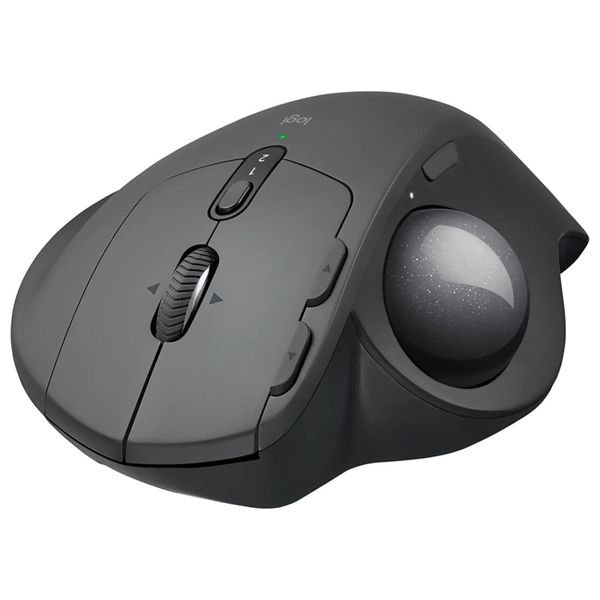
Logitech MX Ergo Advanced Wireless Trackball Mouse
The MX Ergo solves a different problem from every other mouse here: it barely moves at all. You roll the ball with your thumb and the mouse stays put, so your arm never travels across the desk. If your desk is cramped, if you work from a laptop tray, or if moving your whole arm is what hurts, that stationary design can be transformative.
The hinge is the clever part. You can set the MX Ergo flat at 0 degrees or tilt it to 20 degrees, which changes the angle of your hand and forearm without buying a second device. The sensor runs from 512 to 2048 DPI, it connects by Bluetooth or a USB receiver, and the rechargeable battery lasts up to 4 months on a full charge. A precision mode button drops the cursor speed for fine work like selecting text or editing images.
The honest tradeoffs are real. Trackballs have a learning curve, and the ball needs occasional cleaning to keep rolling smoothly. This is a right-handed mouse, and at around $100 it is a premium purchase. But for the right person, usually someone with limited desk space or shoulder pain from arm movement, no traditional mouse competes.
Pros:
- Stationary trackball design, no arm movement needed to move the cursor
- Adjustable 0 or 20-degree tilt angle for a natural hand position
- 512 to 2048 DPI sensor with a precision mode button for fine work
- Bluetooth plus USB receiver, rechargeable battery lasts up to 4 months
- Ideal for small desks, laptop trays and multi-monitor setups
Cons:
- Trackball learning curve, slower at first for new users
- Ball needs regular cleaning to roll smoothly
- Right-handed only
- Around $100, a premium price for a trackball
Best for: Small desks, users with shoulder or arm-movement pain, and anyone who wants precise cursor control without sweeping their arm.
Who should avoid it: Fast-paced gamers, left-handed users, and anyone who dislikes cleaning a trackball should choose a traditional or vertical mouse instead.
4. Anker 2.4G Wireless Vertical Ergonomic Mouse – Best Budget Vertical Mouse
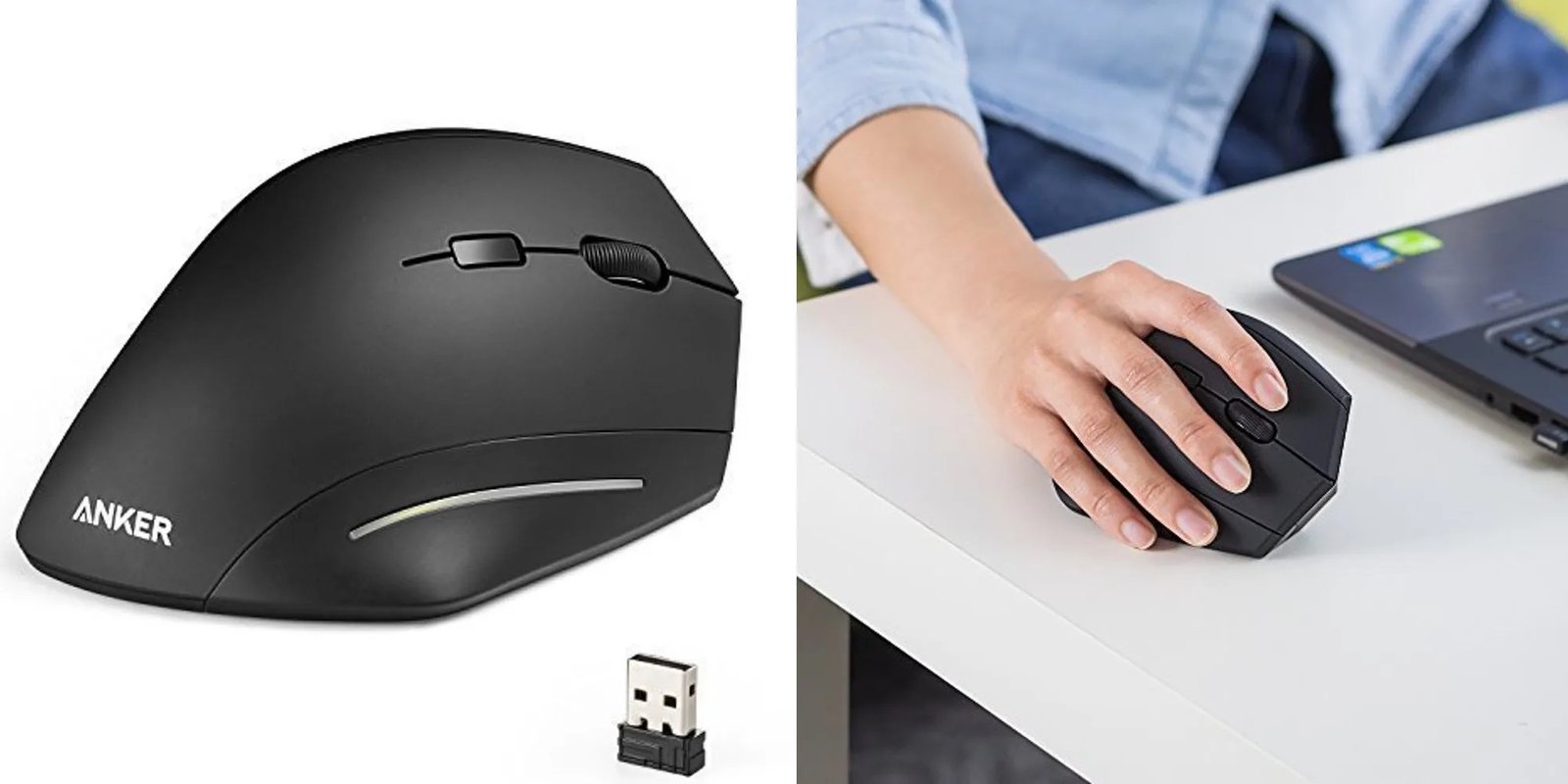
Anker 2.4G Wireless Vertical Ergonomic Optical Mouse
Not sure a vertical mouse is for you? This is the cheapest honest way to find out. The Anker vertical mouse gives you the full handshake grip, the thumb rest and the vertical shape for around $25, which is less than a lunch out. If you try it for two weeks and hate it, you have learned something valuable for very little money.
The specs are simple and that is the point. You get three DPI settings, 800, 1200 and 1600, switched with a button on the mouse, plus five buttons including forward and back thumb buttons. It connects with a 2.4 GHz nano USB receiver that stores in the body of the mouse, and it runs on two AAA batteries. There is no software to install and nothing to configure, so it works the moment you plug it in.
The limits match the price. There is no Bluetooth, so it always uses a USB port, and the DPI range is modest compared with the Logitech models here. The shape suits medium to large hands better than small ones. But as a first vertical mouse, or as a second mouse for a laptop setup, it is hard to argue with the value.
Pros:
- True vertical handshake grip for around $25
- 800, 1200 and 1600 DPI settings with a simple switch button
- Five buttons including forward and back thumb buttons
- Plug-and-play 2.4 GHz nano receiver, no software needed
- Receiver stores inside the mouse for travel
Cons:
- No Bluetooth, always uses a USB port
- Modest DPI range, no fine adjustment
- Better suited to medium and large hands than small hands
- Runs on two AAA batteries, which are not included
Best for: Budget buyers, first-time vertical mouse users, and anyone who wants a simple plug-and-play vertical mouse.
Who should avoid it: Bluetooth-only laptop users, small-handed users and DPI perfectionists should spend more on the Lift instead.
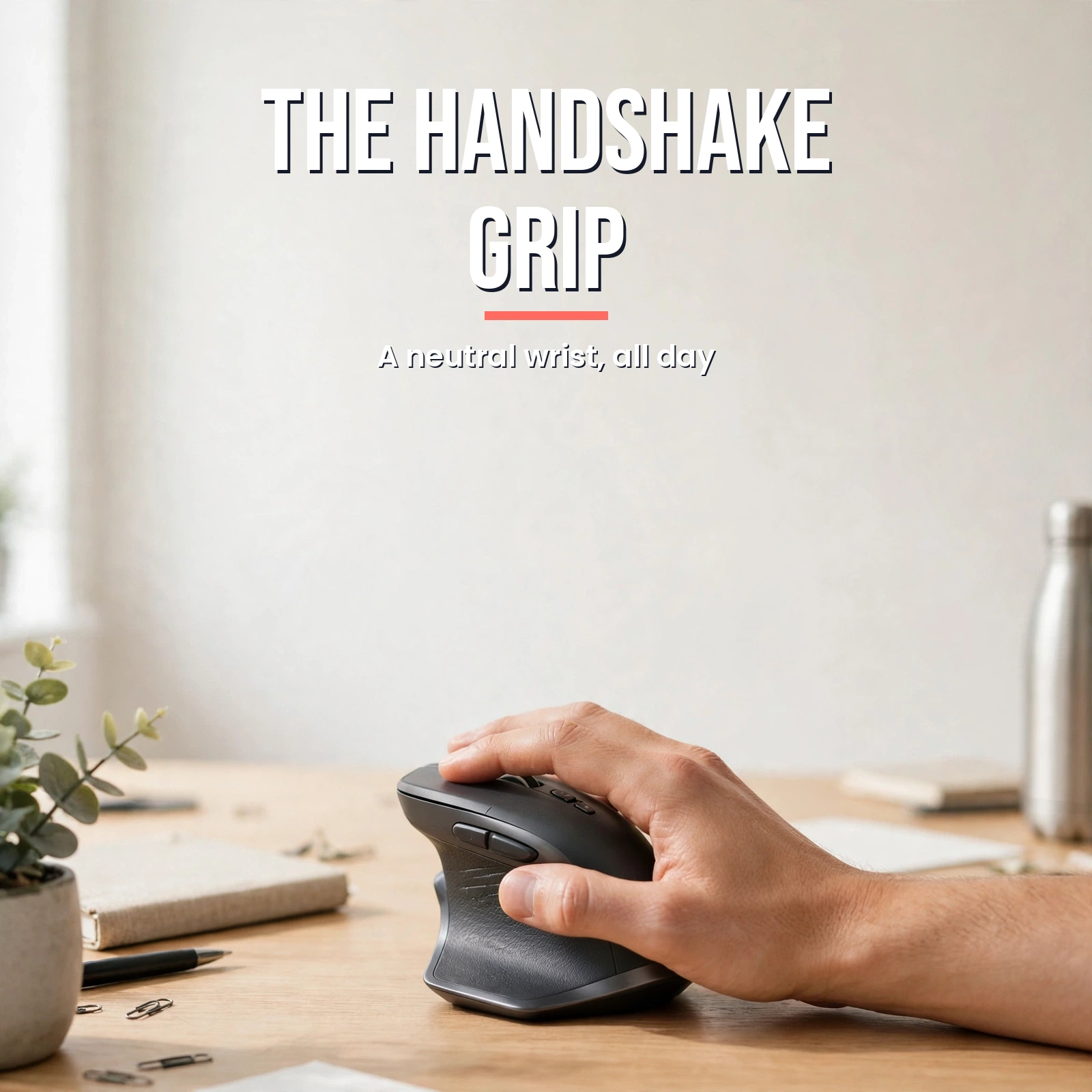
A neutral handshake grip keeps the wrist straighter than a flat mouse.
5. Microsoft Sculpt Ergonomic Mouse – Best Classic Contoured Mouse
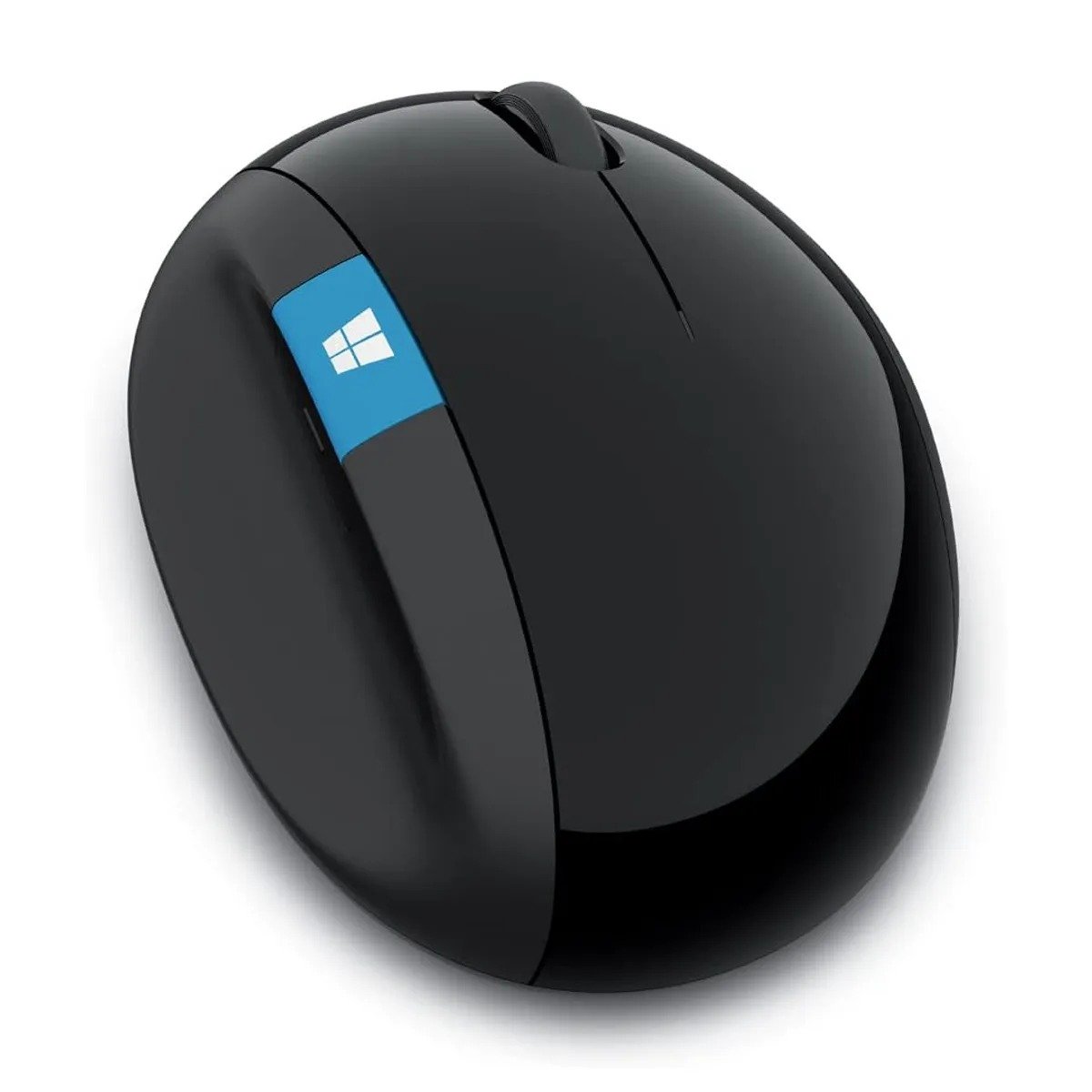
Microsoft Sculpt Ergonomic Mouse
Some people do not want to relearn how to use a mouse. They just want a normal mouse that is shaped like a hand instead of a flat slab. That is exactly what the Sculpt Ergonomic Mouse does. Its contoured body has a thumb scoop on the side, so your thumb rests naturally instead of dragging along the desk, and the shape encourages a relaxed, neutral wrist angle.
The specs are modest but proven. The BlueTrack sensor runs at 1000 DPI and tracks on a wide range of surfaces, and it connects wirelessly with a small USB receiver. It has 7 buttons including a tilt wheel for horizontal scrolling, and it runs on two AA batteries. The shape is right-handed, and the design pairs naturally with the Sculpt ergonomic keyboard if you already use one.
The honest downside is that 1000 DPI is fixed, with no adjustment for users who like a faster or slower cursor. It also has no Bluetooth, so it needs its USB receiver, and the shape, while comfortable, is a smaller change than a vertical or trackball mouse. At around $55, it is a sensible middle step: more comfortable than a standard mouse, less disruptive than a radical redesign.
Pros:
- Contoured shape with a thumb scoop for a natural resting position
- Familiar traditional mouse feel, no learning curve
- 1000 DPI BlueTrack sensor tracks on many surfaces
- 7 buttons including a tilt wheel for horizontal scrolling
- Wireless USB receiver connection, runs on two AA batteries
Cons:
- Fixed 1000 DPI, no sensitivity adjustment
- No Bluetooth, needs the USB receiver
- Right-handed only
- Smaller ergonomic change than a vertical or trackball mouse
Best for: Users who want a gentler traditional mouse, office workers who share desks, and anyone who dislikes radical redesigns.
Who should avoid it: Users who need adjustable DPI, Bluetooth or a dramatic wrist-angle change should pick the MX Master 3S or the Lift instead.
6. Logitech M720 Triathlon – Best Multi-Device Mouse on a Budget
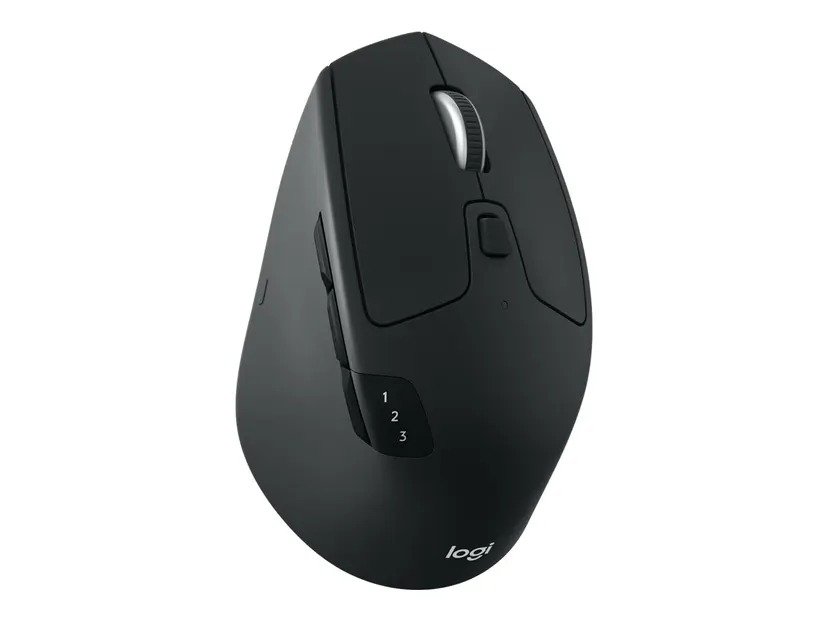
Logitech M720 Triathlon Multi-Device Wireless Mouse
The M720 is the workhorse of this list. It is not the most radical ergonomic shape here, but it is a full-size, contoured, right-handed mouse built for people who jump between devices all day. If you use a work laptop, a home desktop and a tablet, and you are tired of three different mice, this one device covers all three.
The verified specs explain its popularity. It connects by Bluetooth or the Unifying USB receiver and switches between up to 3 devices with a button. It has 8 buttons, a hyper-fast scroll wheel and a tilt wheel for horizontal scrolling, and its optical sensor runs at 1000 DPI. One AA battery lasts up to 24 months, which means you will forget it even takes a battery.
Be clear about what it is not. The M720 is a comfortable traditional mouse, not a vertical or trackball redesign, so the wrist-angle improvement is modest. The DPI is fixed at 1000, and it is right-handed only. At around $40, though, it is the best value multi-device mouse here, and for many home office workers it is all the ergonomic upgrade they actually need.
Pros:
- Full-size contoured right-handed shape for comfortable all-day use
- Connects to up to 3 devices by Bluetooth or Unifying receiver
- 8 buttons with hyper-fast scrolling and a tilt wheel
- 1000 DPI optical sensor, reliable for office work
- Up to 24 months of battery from a single AA battery
- Around $40, excellent value for a multi-device mouse
Cons:
- Traditional shape, only a modest ergonomic change
- Fixed 1000 DPI, no sensitivity adjustment
- Right-handed only
- Larger body is not ideal for small hands or travel
Best for: Multi-device workers, budget buyers who want one mouse for laptop, desktop and tablet, and home office users who want comfort without a learning curve.
Who should avoid it: Users who need a vertical grip, a trackball or adjustable DPI should pick the Lift, MX Ergo or MX Master 3S instead.
Comparison Table
| Product | Shape | DPI | Connection | Best For | Price (approx) |
|---|---|---|---|---|---|
| Logitech MX Master 3S | Contoured traditional | 200-8000 | Bluetooth, Logi Bolt | All-day productivity | Around $99 |
| Logitech Lift | Vertical, 57-degree | 400-4000 | Bluetooth, Logi Bolt | Small to medium hands | Around $70 |
| Logitech MX Ergo | Trackball, 0 or 20-degree tilt | 512-2048 | Bluetooth, USB receiver | Tight desks | Around $100 |
| Anker Vertical | Vertical handshake | 800-1600 | 2.4 GHz USB receiver | Budget vertical starter | Around $25 |
| Microsoft Sculpt | Contoured traditional | 1000 | USB receiver | Classic comfort | Around $55 |
| Logitech M720 Triathlon | Contoured traditional | 1000 | Bluetooth, Unifying receiver | Multi-device value | Around $40 |
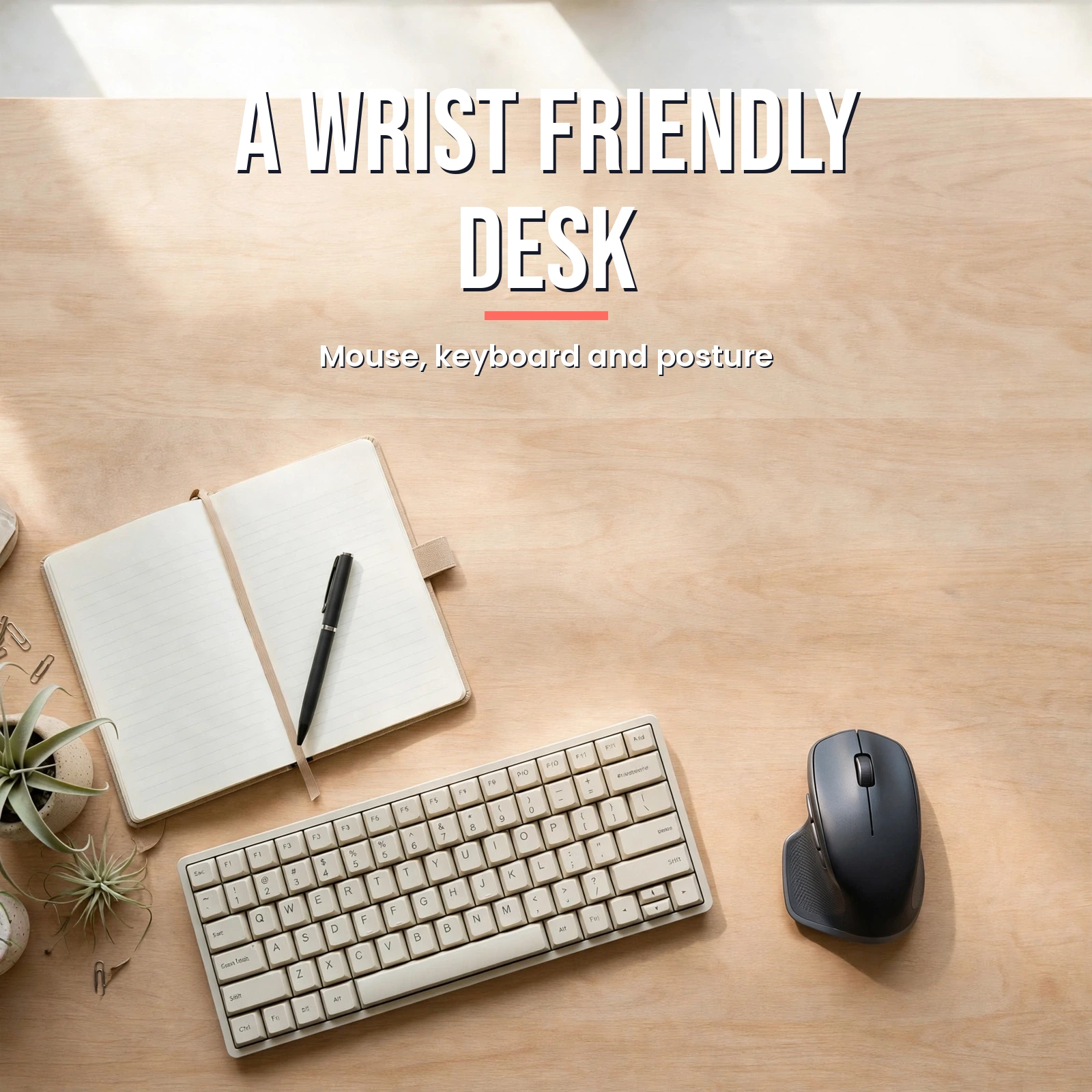
The right mouse works best as part of a neutral desk setup.
Buying Guide: How to Pick the Right Ergonomic Mouse
The mouse matters less than the match. Here is how to choose like someone who has tested all three shapes.
Start with your pain, not the product
Wrist pain from twisting usually points to a vertical mouse, because the handshake grip removes the forearm twist. Shoulder pain from moving your arm across a big desk usually points to a trackball, because the mouse stays still. General tiredness after long days, with no single sharp pain, usually points to a well-sculpted traditional mouse like the MX Master 3S or the Sculpt. If your symptoms include persistent numbness, weakness or pain that wakes you at night, stop shopping and see a clinician first: no mouse is a medical treatment.
Match the size to your hand
Hand size is the most common reason ergonomic mice get returned. Small to medium hands fit the Lift beautifully and often swim in larger vertical mice. Medium to large hands suit the Anker vertical and the full-size M720. If you are between sizes, a contoured traditional mouse is the safer bet, because its shape is more forgiving than a tall vertical shell. When in doubt, measure your hand from wrist crease to middle fingertip and compare it with the manufacturer’s size guide before ordering.
Think about your desk, not just your hand
A trackball shines on a tiny desk, a laptop tray or a crowded workstation, because it needs almost no surface at all. A vertical mouse needs a little more room and a little more clearance than a flat mouse, so check your desk height and keyboard tray. A traditional mouse needs the most surface, but it is also the easiest to use on any desk. And wherever your mouse sits, keep it close to the keyboard: reaching out sideways for your mouse all day is its own source of shoulder strain.
DPI matters less than you think
For office work, anything from 800 to 2000 DPI is plenty, and most people settle near 1000 to 1600 DPI. Higher DPI matters for large monitors, multi-monitor setups and fine design work, where the MX Master 3S earns its price. The fixed 1000 DPI on the Sculpt and M720 is a real limit only if you already know you like a faster or slower cursor. If you have never changed a DPI setting in your life, do not pay extra for a range you will never use.
Wireless, battery and buttons: the practical checklist
Bluetooth is the cleanest option for laptops and tablets, because it uses no USB port, while a USB receiver is the most reliable option for desktops. Multi-device users should insist on a mouse that pairs with at least 2 or 3 devices, like the Lift, MX Master 3S or M720. Battery life varies wildly here, from rechargeable models that last weeks to AA models that last up to 24 months, so pick the system you will actually maintain. And if you live in spreadsheets, a tilt wheel or thumb wheel for horizontal scrolling is worth more than any other extra button.
Give every new shape two full weeks
Almost every vertical and trackball mouse feels awkward on day one. That is normal, not a sign you bought the wrong mouse. Your muscles have spent years learning a flat grip, and a new grip needs time to become automatic. Use the new mouse for all your work, not just an hour a day, and judge it after two full weeks. If it still hurts, or hurts in a new place, switch shapes rather than pushing through pain.
Build the rest of the setup around the mouse
A mouse cannot fix a bad desk on its own. Pair your new mouse with one of the best laptop stands so your screen sits at eye level instead of pulling your neck forward. Good lighting matters too, and our guide to the best desk lamps covers glare-free options for long workdays. If you switch between sitting and standing, a standing desk converter lets you change posture without rebuilding your desk, and a surge protector keeps your whole setup safe from power spikes.
Frequently Asked Questions
Do ergonomic mice really help with wrist pain?
They can help, but they are not a cure. Ergonomic mice change the angle of your wrist and forearm, which can reduce strain during long workdays, and health authorities like the Mayo Clinic recommend keeping the wrist in a neutral, relaxed position rather than bent up or down. A mouse that makes that neutral position easier to hold is genuinely useful. But persistent pain, numbness or weakness should be checked by a clinician, because it can have causes a mouse cannot fix.
Are vertical mice better than normal mice?
Vertical mice are better for people whose pain comes from forearm twisting, because the handshake grip keeps the forearm in a more neutral position. They are not better for everyone: some people find them slower for precise work, and they take time to learn. If your current pain is mild and general, a well-sculpted traditional mouse may give you most of the benefit with none of the learning curve.
What is the best mouse for wrist pain?
There is no single answer, because wrist pain has different causes. For twisting-related wrist pain, a vertical mouse like the Logitech Lift is the most common recommendation. For pain linked to arm movement, a trackball like the MX Ergo removes that movement entirely. For general all-day comfort, the MX Master 3S is the safest premium pick. Start from your pain and your hand size, not from a best-seller list.
How long does it take to get used to a vertical mouse?
Most people need a few days to stop feeling clumsy and about two full weeks to feel fully natural with a vertical mouse. Precision tasks like photo editing usually take the longest to feel normal again. If a vertical mouse still feels wrong or painful after two weeks of full-time use, it is probably the wrong shape or size for your hand, and a different shape is worth trying.
Is a trackball mouse good for everyday office work?
Yes, for the right user. Trackballs are excellent for office work on small desks, for multi-monitor setups, and for people who want to stop moving their arm to move the cursor. The learning curve is real, and the ball needs cleaning, but many long-term trackball users never go back. They are less ideal for fast gaming or for users who share a computer with people who dislike trackballs.
What DPI should I use for office work?
Most office users are comfortable between 1000 and 1600 DPI on a standard monitor. Lower DPI gives more control for fine work, higher DPI covers large or multiple monitors with less hand movement. The mice on this list cover that range well, from the fixed 1000 DPI models to the 8000 DPI MX Master 3S. If you have never adjusted DPI before, start at 1000 to 1200 and change it only if the cursor feels too slow or too twitchy.
Should I choose a wireless or wired ergonomic mouse?
For a home office, wireless is the better choice for most people: it removes cable drag, which itself can add wrist strain, and it keeps the desk tidy. All six mice on this list are wireless. Battery life ranges from rechargeable models lasting weeks to AA models lasting up to 24 months, so wireless no longer means constant charging. Wired mice still make sense for competitive gaming, but that is not what this guide is for.
Final Verdict
There is no single best ergonomic mouse, only the right mouse for your hand, your desk and your pain. Start with the Logitech MX Master 3S if you want the best all-round upgrade with no learning curve: its sculpted shape, 8000 DPI sensor and 70-day battery make it the safest premium pick here. Choose the Logitech Lift if your wrist pain comes from twisting and your hands are small to medium: its 57-degree handshake grip is the most direct fix on this list.
Pick the Logitech MX Ergo if your desk is tiny or moving your arm is what hurts, because its stationary trackball design removes that movement entirely. Try the Anker vertical mouse first if you are curious about vertical mice but not ready to spend much: at around $25, it is the cheapest honest test of the whole category. And if you just want a comfortable, familiar mouse, the Microsoft Sculpt and the Logitech M720 Triathlon are both excellent value, with the M720 winning for multi-device workers.
Whichever you choose, remember the rule health authorities repeat: keep your wrist neutral, keep your mouse close to your keyboard, and take short breaks every hour. The best mouse in the world cannot replace those habits, but the right one makes them far easier to keep. And if pain persists, see a clinician: your health is worth more than any gadget on this list.